How To Print Reports To .PDF Files
The Show Program allows you to print reports as PDF files rather than to the printer.
Note: this only works for full reports, not the quick reports.
Here are the quick instructions for printing to a pdf file:
- Start the Show Program and get to the print preview screen for the report you want to print as a PDF file.
- Click the "Print" button in the upper left to bring up the print dialog.
- Select the "Print to File" checkbox in the print dialog.
- Select or enter a location and name for the PDF file that will be created.
Note that the directory must already exist ... or you'll get an error message.
- Click the "OK" button to being printing to PDF file.
- Navigate to and open (double click on) the file you just created and then print the report from your PDF viewer.
Here are the same instructions but with screen shots to guide you.
Step 1: Start the Show Program and get to the print preview screen for the report you want to print as a PDF file.
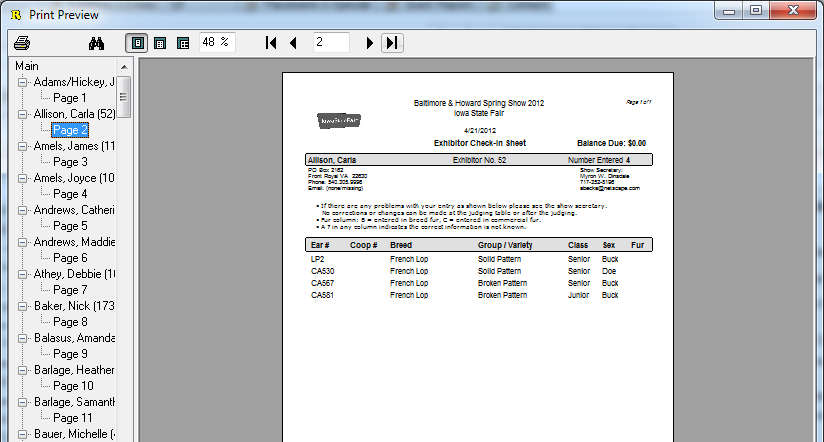
This image shows the print preview screen for for the exhibitor check-in sheets.
Step 2: Click the "Print" button in the upper left to bring up the print dialog.
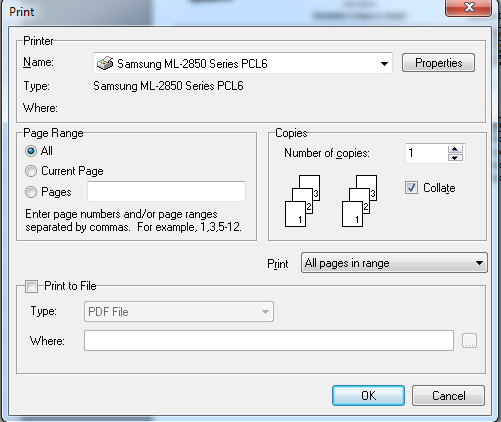
This image shows the print dialog with the default options from my computer.
Step 3: Select the "Print to File" checkbox in the print dialog..
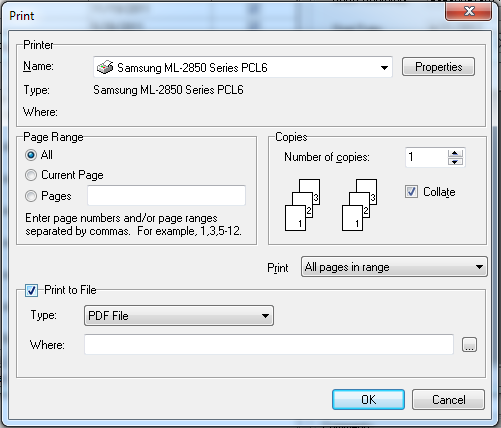
This image shows the print dialog with the 'Print to File' option checked, which enables print to pdf options.
Step 4: Select a location to save the PDF file by clicking the little "..." button.
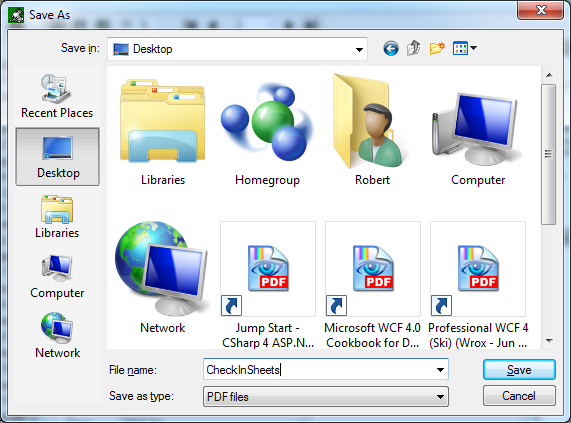
This image shows the 'Save As' dialog where I've selected to save to the desktop and named the report file.
Step 5: Print the report to the PDF file.
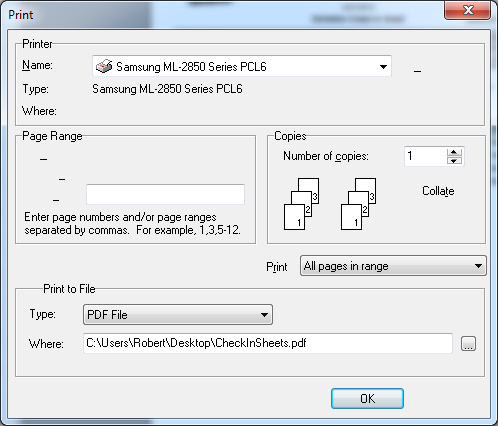
This image shows the print dialog with all fields filled out and ready to print the check-in sheets as a pdf file to the desktop.
Clicking the OK button will print the report as a pdf file.
Step 6: Open the PDF file and print it to your printer.
This step will vary from machine to machine so no screen shots are provided.
If you've saved the file to your desktop, you can just double click on it to open the report.